Easy Steps
1
Go to Item Categories
Access General Setup and select Item Categories.
2
Add a Category
Click Add category and enter a custom name.
3
Manage Existing Categories
Click to edit or delete any existing category.
4
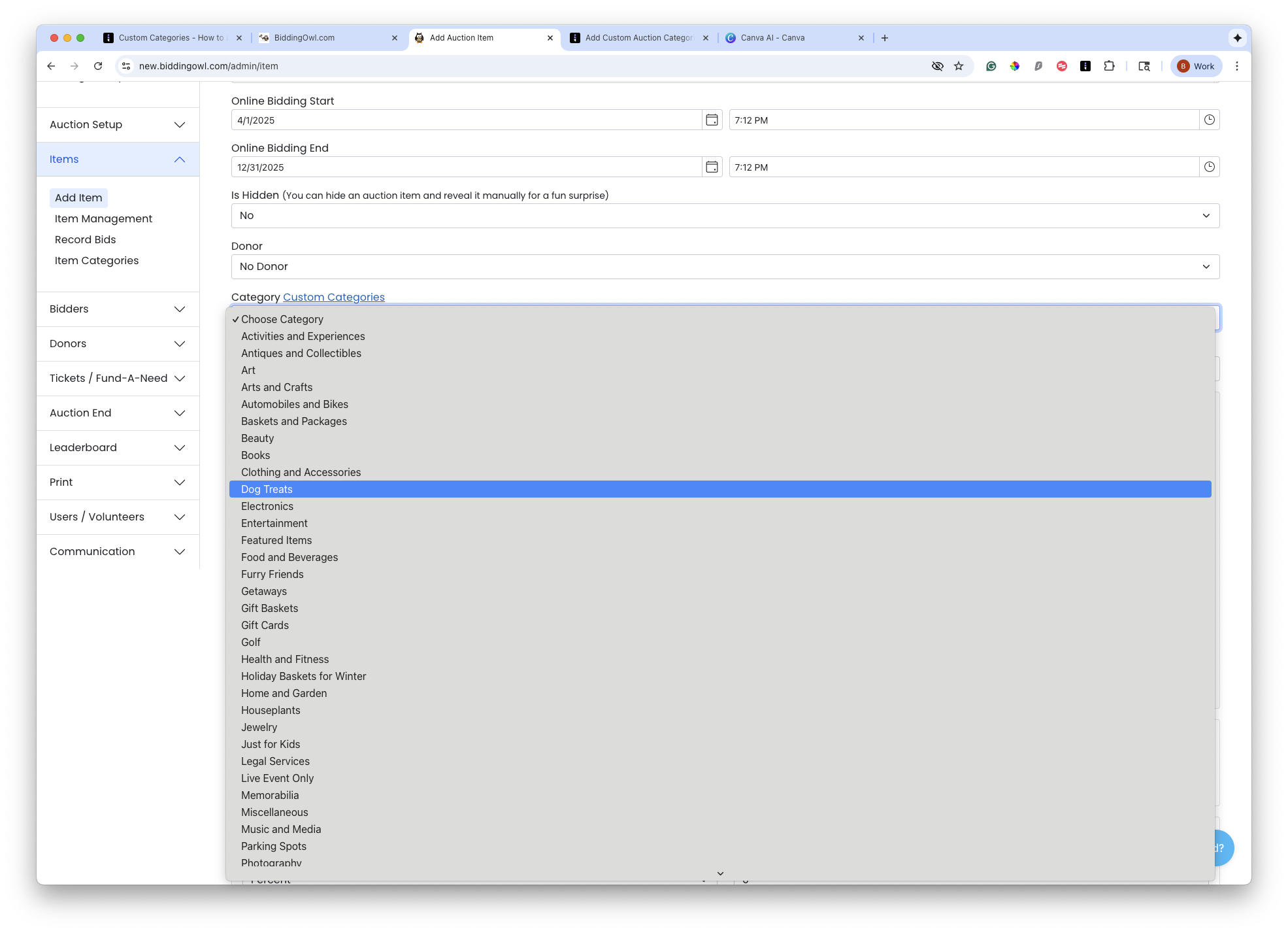
Select Categories for Items
Choose categories when adding items from the drop-down.
Let's Do It Together!
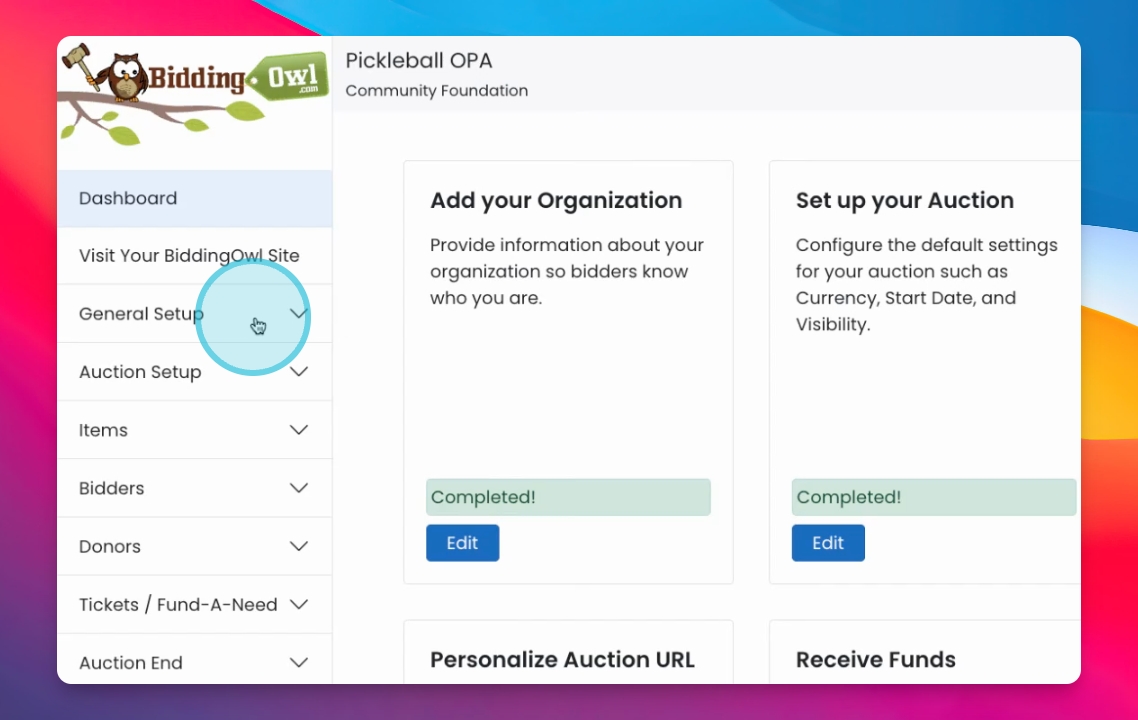
Step 1: Access Item Categories
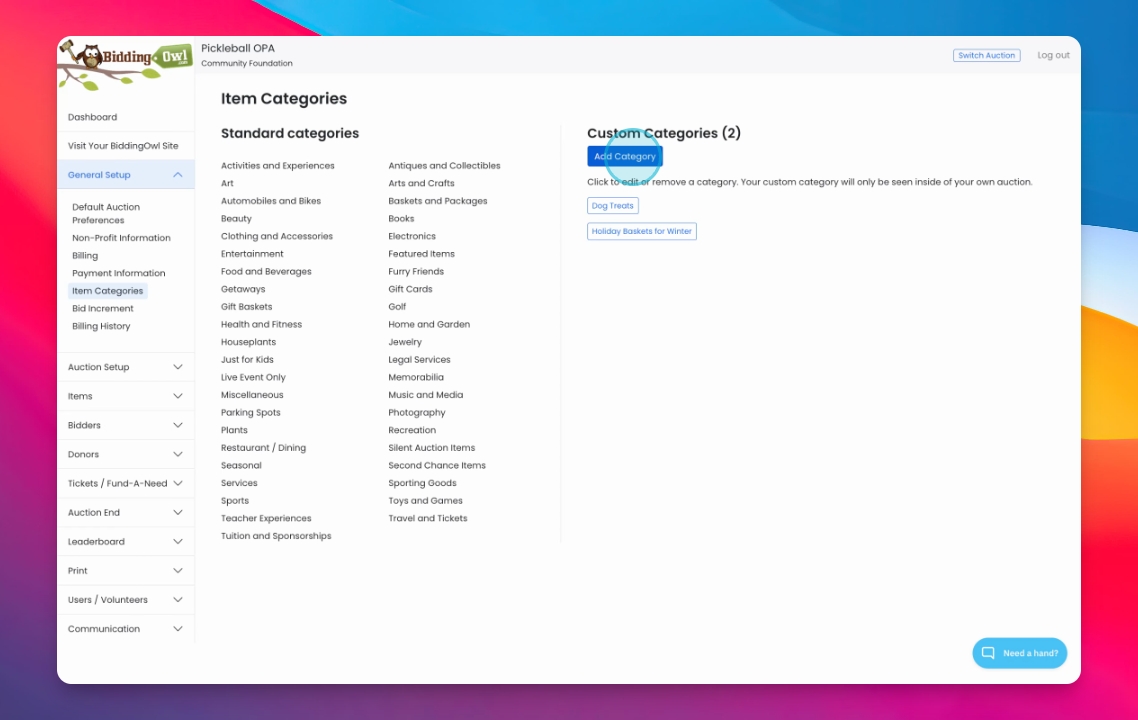
Go to General Setup and select Item Categories.
You will see all your standard categories listed.
Now you are ready to add your custom categories.
Step 2: Add a Custom Category
Click on Add category.
Create your own category, for example, beach themed.
Click Save to add the category.
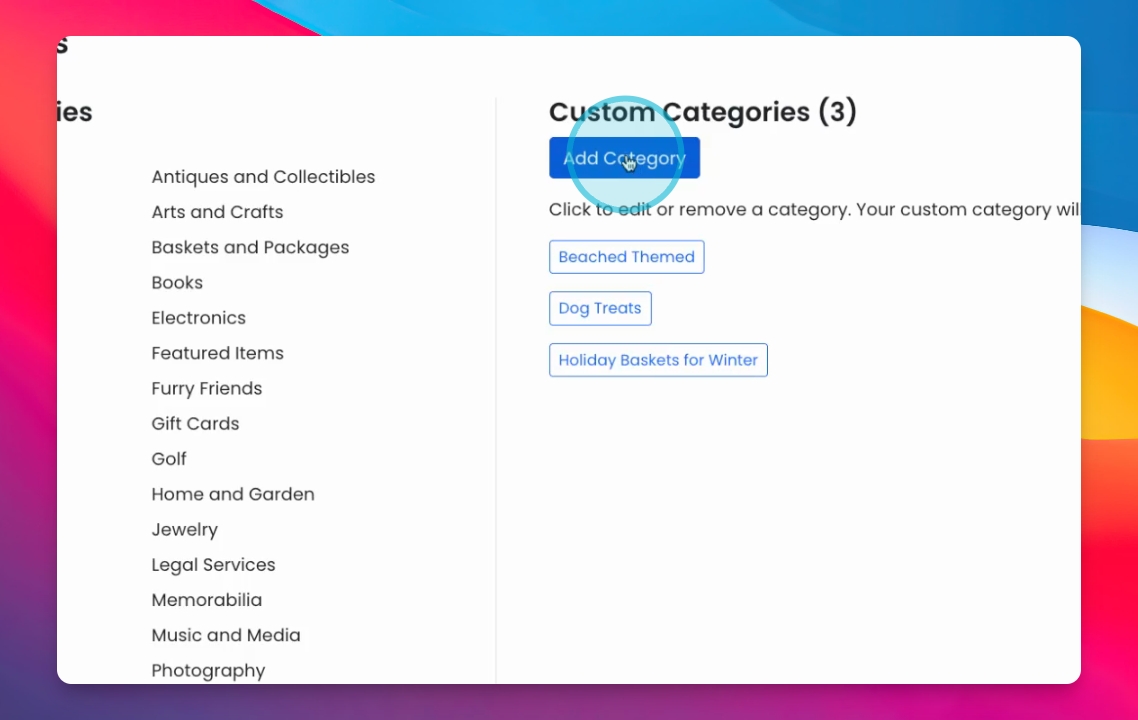
Your custom category will now be added to the list.
Step 3: Manage Categories
To add another category, repeat the previous step.
To edit or delete a category, click on it and save your changes.
Step 4: Use Your Categories
Your categories are now available in Items and Item Management.
When adding an item, select your category from the drop-down menu.